

Getting started with FloNeo
FloNeo lets you design and publish websites and apps visually, without writing code. You can start in two ways: describe your idea to NEO (FloNeo's AI) and get a first version built for you, or start from a blank canvas and build it yourself.
Before you start
- Use a laptop or desktop. The builder needs a screen at least 1024px wide. On a phone or small tablet you'll see "Please open Floneo on a larger screen" with a Copy link button so you can open it later on a computer. Sites you publish still work on every device.
- Use an up-to-date browser — Chrome, Edge, Firefox or Safari.
- Go to
floneo.appand sign in.
Your dashboard at a glance
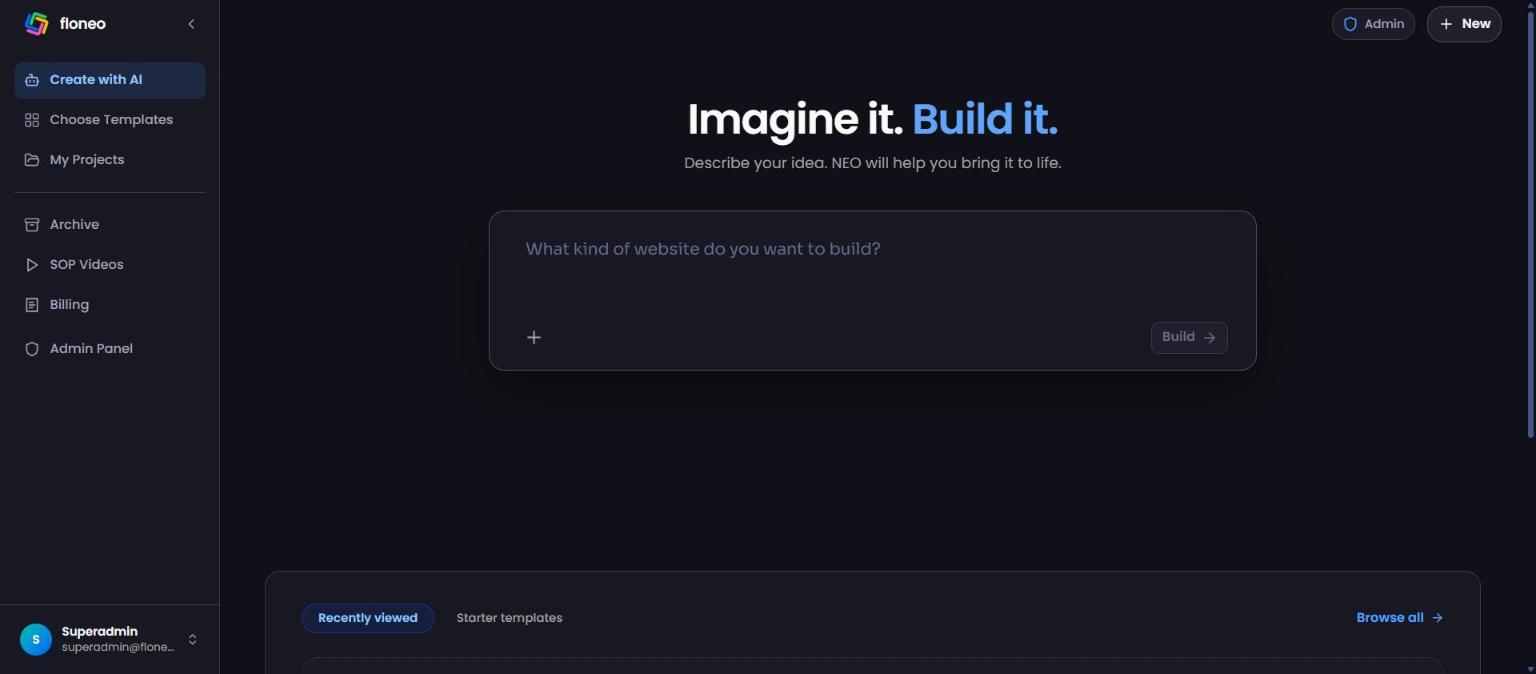
| Area | What it does |
|---|---|
| Create with AI | Type what you want to build and press Build. NEO plans and builds the first version. |
| Choose Templates | Ready-made apps to start from. (Coming soon.) |
| My Projects | All your apps, with search, Drafts/Published filters and grid or list view. |
| Archive | Apps you've archived. Restore them any time. |
| SOP Videos | Training videos from the FloNeo team. |
| Billing | Your plan, credit balance, payment history and GST details. |
| + New (top right) | Create a blank app by name and description. |
| Your name (bottom left) | Profile, notifications, theme, language, billing and log out. |
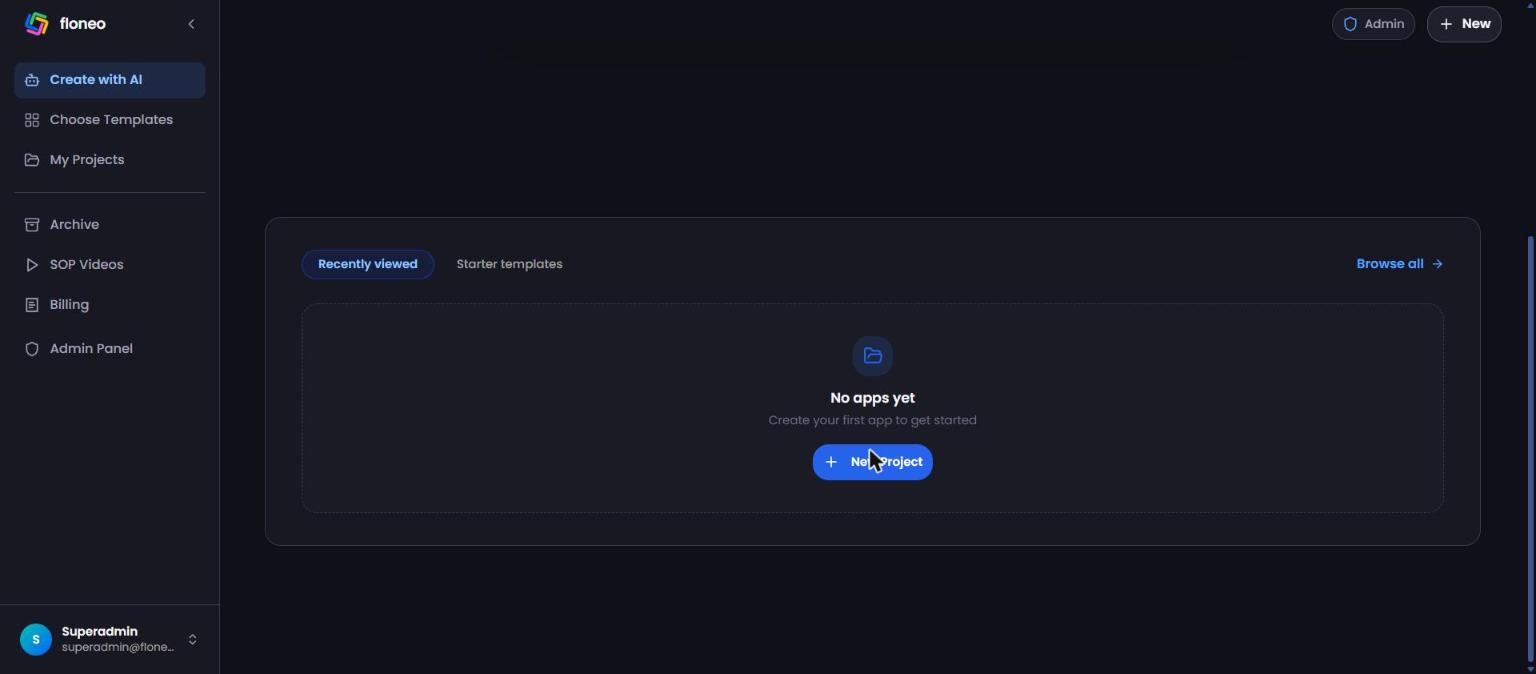
Below the prompt box you'll find Recently viewed (your latest apps) and Starter templates (coming soon). Browse all → opens My Projects.
Option A — Build with AI (fastest)
- On Create with AI, describe your website in plain words. Example: "A one-page website for a small bakery in Kochi with a menu section and contact form."
- Press Build.
- NEO walks you through a few short steps — improving your idea, a few optional questions, a colour palette and the page structure — then shows you the full plan.
- Press Generate website. Your site opens in the editor, ready to change.
Full walkthrough: Create with AI
Option B — Start from a blank canvas
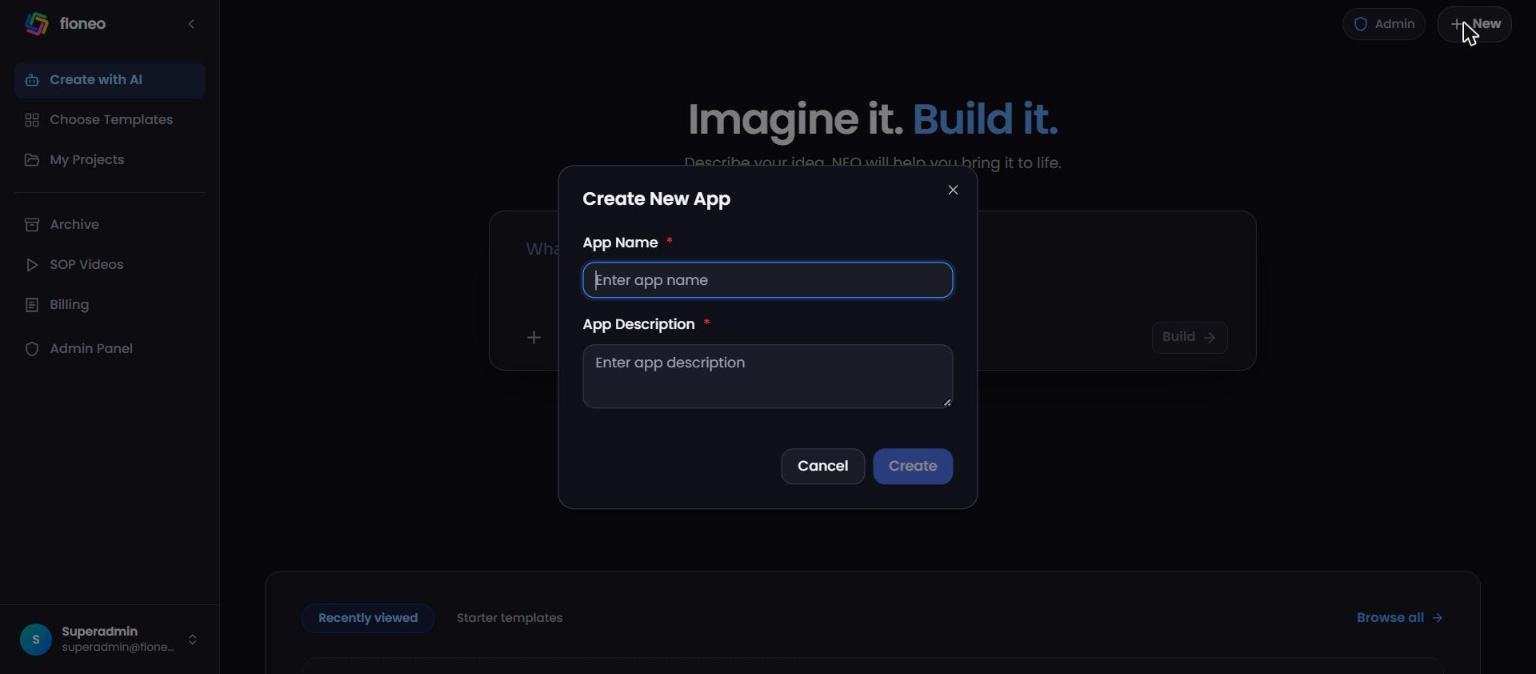
- Click + New (top right) or New Project in My Projects.
- Enter an App Name and App Description (both required).
- Click Create. The editor opens in a new tab with an empty Page 1.
💡 Tip: Starting blank doesn't use any credits. You can still use Ask Floneo inside the editor later to add or change things with AI.
Next: The editor
Is my work saved?
Yes. The editor saves automatically — the status next to Preview changes from Saving… to ✓ Saved. You can also press Ctrl/⌘ + S at any time.
Where to go next
Didn't find your answer? Contact support