
How to Edit an AI-Generated Website Without Re-Prompting with Floneo
If every correction needs another prompt, you spend more time explaining than building. A five-step way to edit what AI generated - directly.
Aayush1 min read
How to Edit an AI-Generated Website Without Re-Prompting with Floneo
The real test of an AI website builder isn't how fast it generates a page. It's how easily you can improve that page afterwards.
Part 3 of 3 - The Editing Playbook
Five steps to take a generated page from first draft to publish-ready: edit what you already know directly, and save AI for the changes that genuinely need reasoning.
Your AI website builder has generated a homepage. The layout looks good, the sections are in place, and the first version is ready. But the headline is wrong, the button is too large, and the brand colour needs changing. What happens next?
If every correction requires another prompt, you can end up spending more time explaining small changes to AI than making them yourself. And every new generation introduces the possibility of changes you never asked for. Learning how to edit an AI-generated website means understanding when to use AI and when to take direct control of the result.
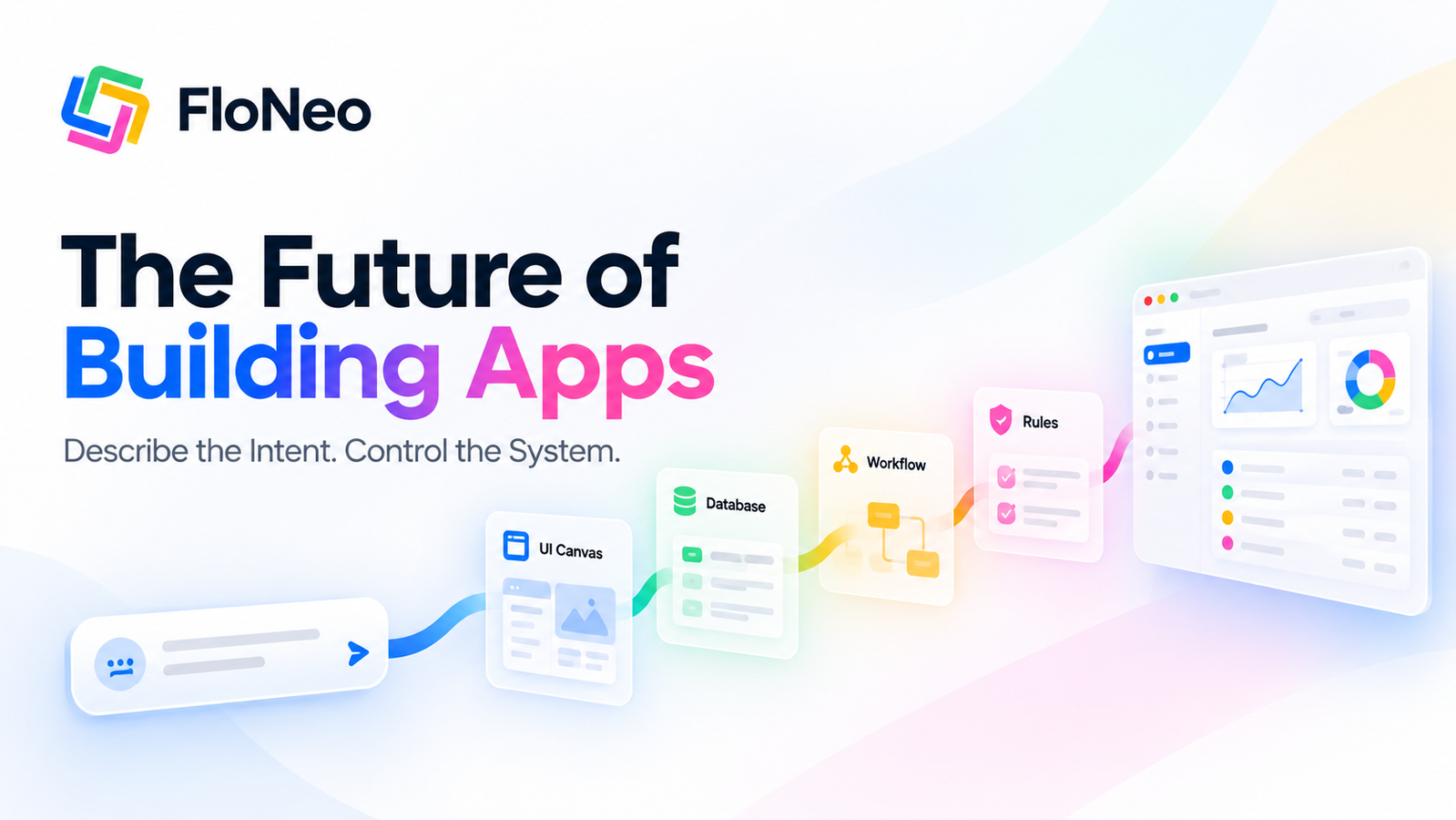
FloNeo is built around this distinction. Its workflow follows four stages: describe, generate, edit and own. You use natural language to get started, then work directly on the canvas to make supported visual changes. AI remains available when the task needs more reasoning. [1]
Here's how that approach works in practice.
Step 1: Generate a Useful First Version
Start by describing the website you want to build. You don't need to know code or technical component names, but you should explain the website's purpose, audience and essential content.
For example, if you're building a landing page for a photography studio, your starting prompt could be:
Create a landing page for a photography studio. Include a headline, a short introduction, a portfolio section, three service packages, customer testimonials and a booking call-to-action. Use a clean, editorial visual style with warm neutral colours.
FloNeo turns your description into a structured starting interface. Treat this as your first draft, not a finished website.
Because FloNeo is built for a 96% expectation-to-reality accuracy, a clear description like this one usually gets you a draft that already reflects most of your intent - leaving the details, not the direction, for you to refine.
What to check: Does the page communicate the right message? Are the important sections present? Does the overall design fit your brand?
Fix major structural problems before polishing small details. It is easier to refine a coherent starting point than to perfect individual elements on a page that needs a different direction.
Step 2: Change the headline directly
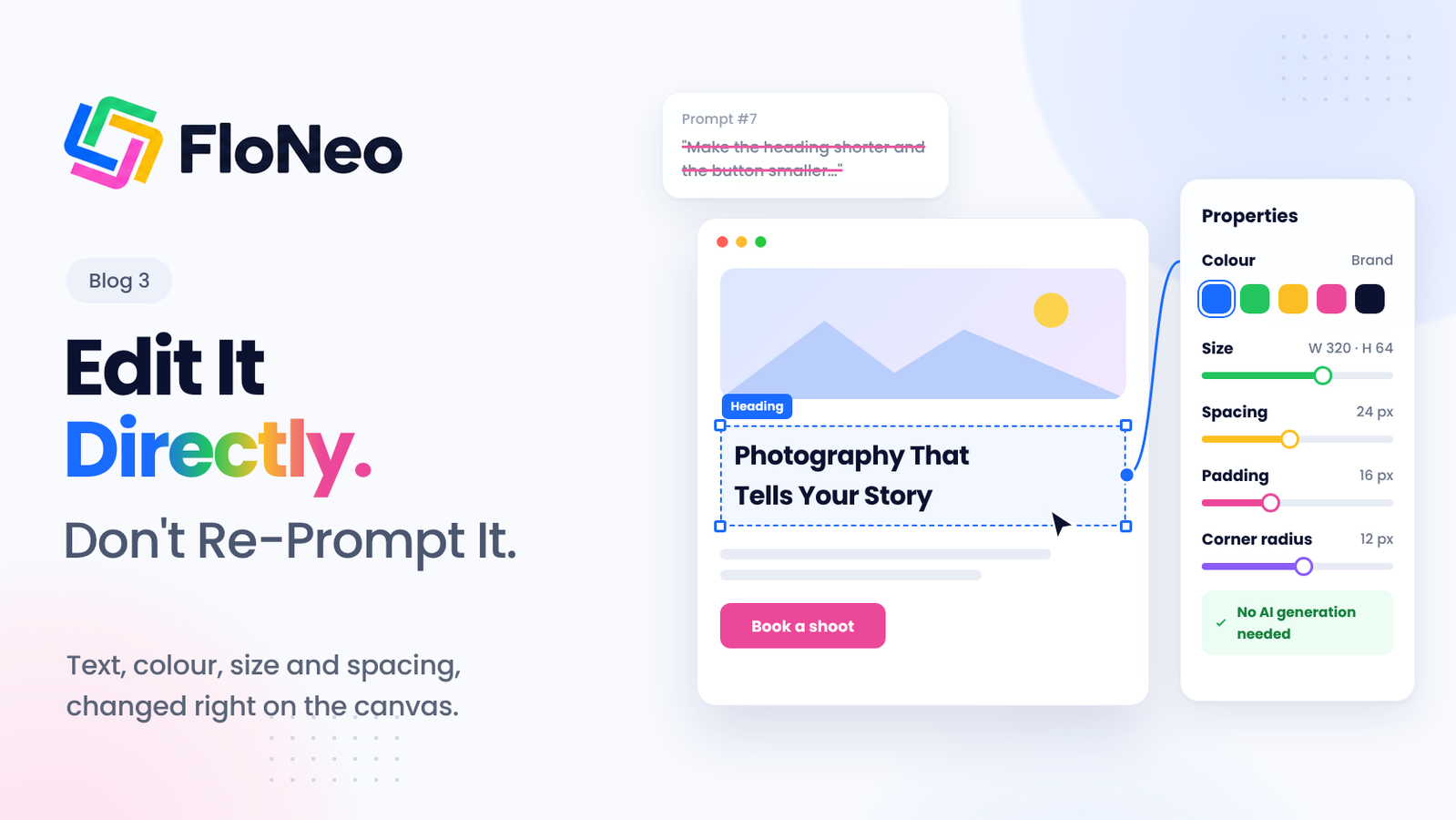
Suppose the generated headline reads "Capturing Your Special Moments," but you want something more specific: "Photography That Tells Your Story." The conventional prompt-based approach would be to type the replacement into the chat and ask the AI to update the page.
With FloNeo, the documented alternative is simpler: click the heading on the canvas and change its copy directly. You already know the wording you want. There is no need to ask a model to interpret that instruction.
Direct editing is useful for:
- Correcting headlines and subheadings.
- Fixing typos and grammatical errors.
- Rewriting button labels.
- Updating short descriptions or other visible copy.
Step 3: Adjust colours, size and spacing
Now imagine the page has the right content, but the call-to-action button is oversized, the headline needs more breathing room, and the colour scheme doesn't match your brand.
This is where a visual AI website editor can make the process more straightforward.
FloNeo's direct canvas can help edit colours, size, spacing, alignment and position. Its product page also illustrates properties including width, height, corner radius and padding. The precise controls available depend on the element and the release. [1]
Instead of writing a prompt for each adjustment:
- Select the element you want to change.
- Use the available visual controls to adjust its relevant properties.
- Preview the result.
- Repeat until the element fits the page.
For example, you might reduce a button's width, increase the spacing around a heading, or change a component's colour to match your brand palette.
The important advantage is precision. You can adjust the element you selected rather than asking AI to reinterpret an entire instruction and potentially alter unrelated parts of the design.
Step 4: Know when a prompt is still useful
Direct editing is not the answer to every problem. Changing a heading is straightforward. But what if you want to turn a single-audience landing page into one that serves both individual customers and businesses, without losing the existing visual identity?
That is a different kind of task. You know the outcome you want, but the changes may involve multiple sections, messages and page elements. This is where Ask Neo fits into FloNeo's approach. It is designed as an AI co-builder that can help interpret your goal in the context of your project, rather than treating every instruction as an isolated request.
You could describe the outcome like this:
Adapt this landing page for two audiences: individual customers and business clients. Keep the existing visual identity, but make the value proposition and calls to action clear for each audience.
Use AI when the change requires interpretation or reasoning. Review the result to ensure it reflects your intent.
Before an AI-assisted change like this runs, FloNeo shows its expected credit cost, and you can review the credits used afterwards. You decide when a change is worth it - with the number in front of you, not after the fact. [1]
The distinction is simple:
| If you want to... | Use... |
|---|---|
| Replace a headline with exact wording | Direct visual editing |
| Change a supported colour or size | Direct visual editing |
| Adjust spacing or alignment | Direct visual editing |
| Rethink the page for a different audience | Ask Neo or AI-assisted changes |
| Make a change whose implementation is unclear | Ask Neo for help reasoning through it |
| Know what an AI change will cost before it runs | FloNeo's expected credit cost, shown upfront |
Step 5: Review the website before publishing
A page that looks polished is not necessarily ready to go live. Once your edits are complete, review the experience as a visitor would.
Use this checklist:
- Content: Are the headline, descriptions and calls to action accurate?
- Visual consistency: Do colours, spacing and component sizes feel consistent?
- Mobile layout: Does the page remain usable on smaller screens?
- Navigation: Do the links point to the intended destinations?
- Forms and actions: If the page includes a form or booking flow, test that it behaves as expected.
- SEO basics: Check the page title, relevant metadata, headings and crawlable links. [2][3]
- Final validation: Test the actual page rather than assuming a generated interface is production-ready.
For more on the search-readiness side, read our guide to AI website builder SEO.
Conclusion: This is the Real Test of an AI-App Builder
The real value of an AI website builder is not just how quickly it generates a page. It is how easily you can improve that page after generation. When you know exactly what needs to change, direct editing gives you control. When you know the outcome but need help working out the implementation, Ask Neo can help you reason through it.
That is how to edit an AI-generated website without turning every design decision into another prompt.
FloNeo is launching on 1 November 2026. Join the free waitlist to get early access and explore a different way to build.
Previous in the Series
Part 2: How to Build a Website With AI Without Burning Through Credits (Sample Prompt Included)
Part 2 covers the full build workflow: planning the brief, a copy-and-paste first prompt, visual refinement and a pre-publish checklist.
Editorial note: Replace this placeholder with the live Part 2 URL after publication.
References
- FloNeo. FloNeo - Describe, Generate, Edit, Own.
- Google Search Central. Google Search technical requirements.
- Google Search Central. Make your links crawlable.
- FloNeo. Why Beautiful AI-Generated UIs Still Fail in the Real World.