

Manage your projects — rename, archive, restore, delete
My Projects
My Projects lists every app in your workspace.
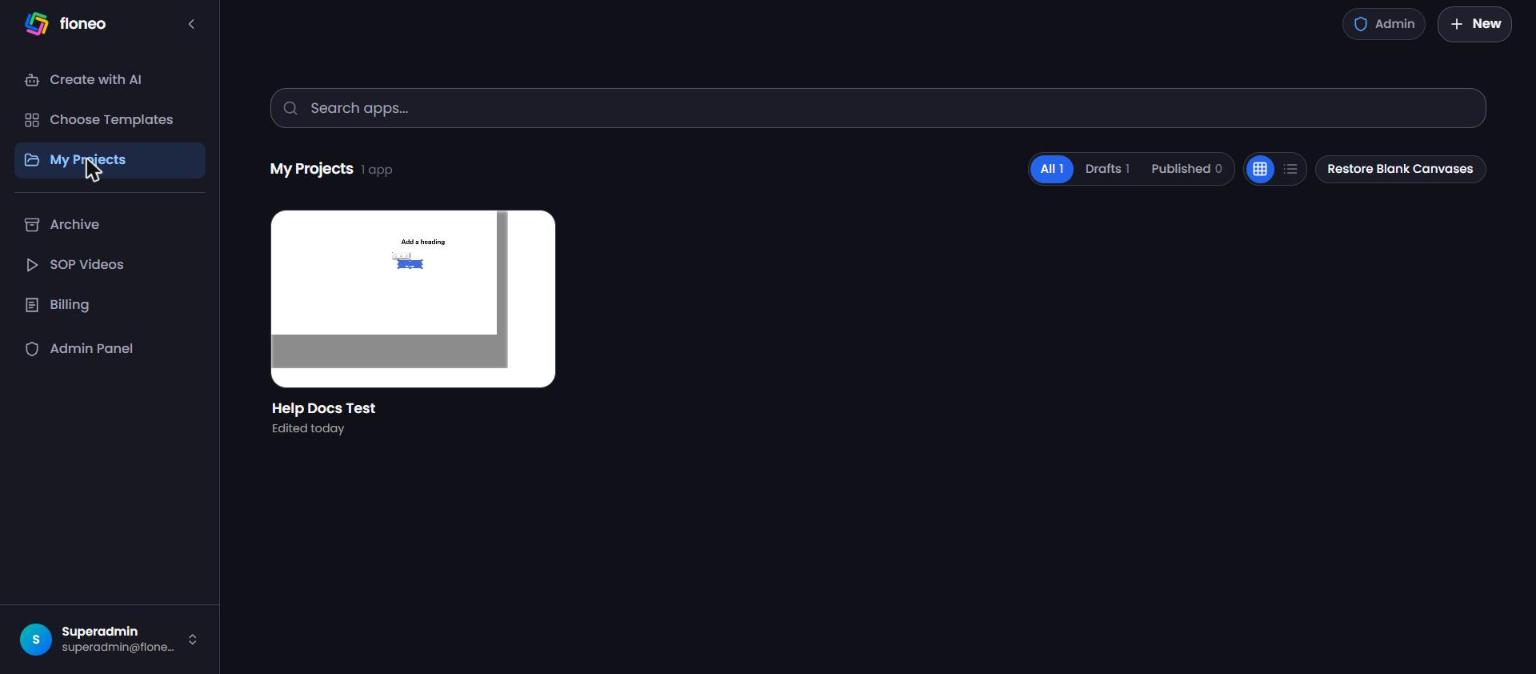
- Search apps… — find an app by name.
- All / Drafts / Published — filter by status (with counts).
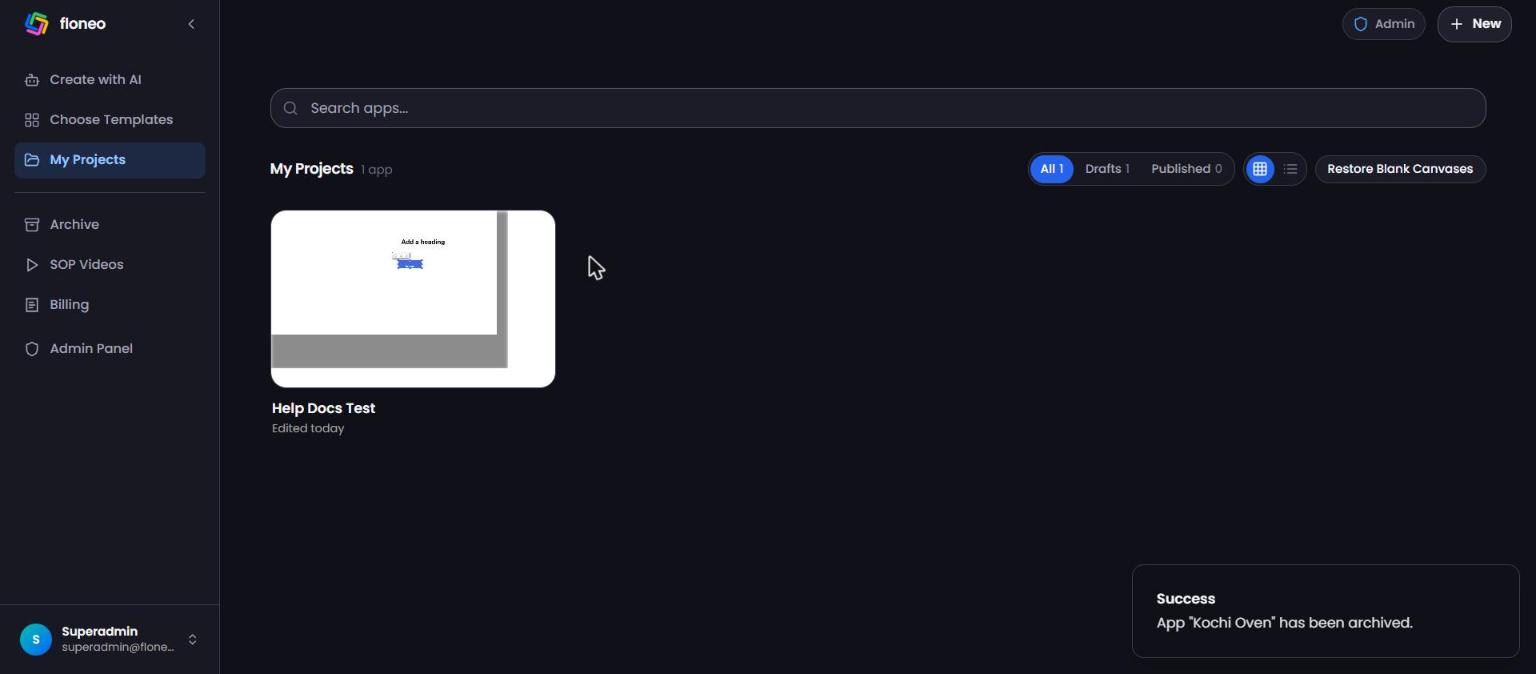
- Grid ▦ / List ☰ — switch view.
- Click an app to open it in the editor.
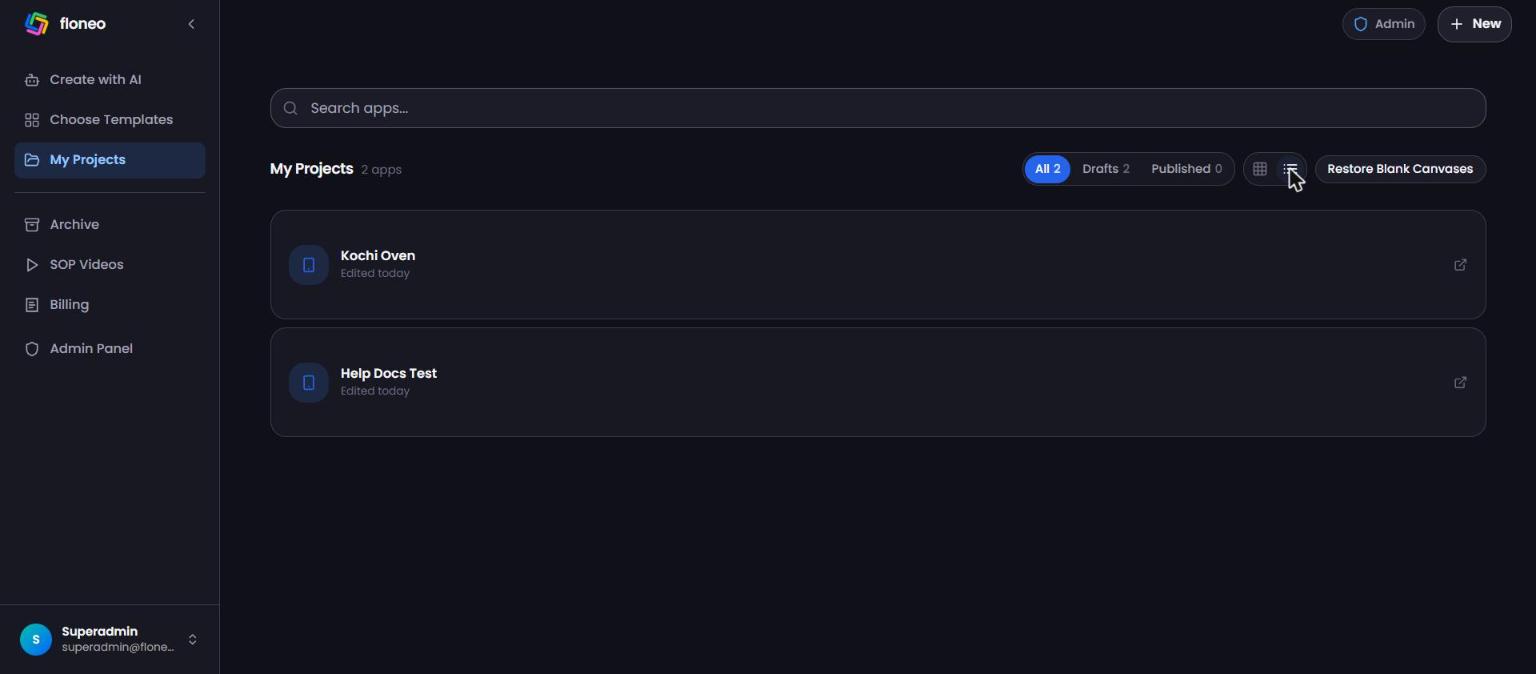
Project options (⋮)
Hover over an app card and click ⋮:
| Option | What it does |
|---|---|
| Archive | Moves the app to Archive. You can restore it any time. |
| Rename | Change the app's name. |
| Publish changes | Push your latest draft to the live site. |
| Delete | Removes the app. ⚠️ Use Archive if you might want it back. |
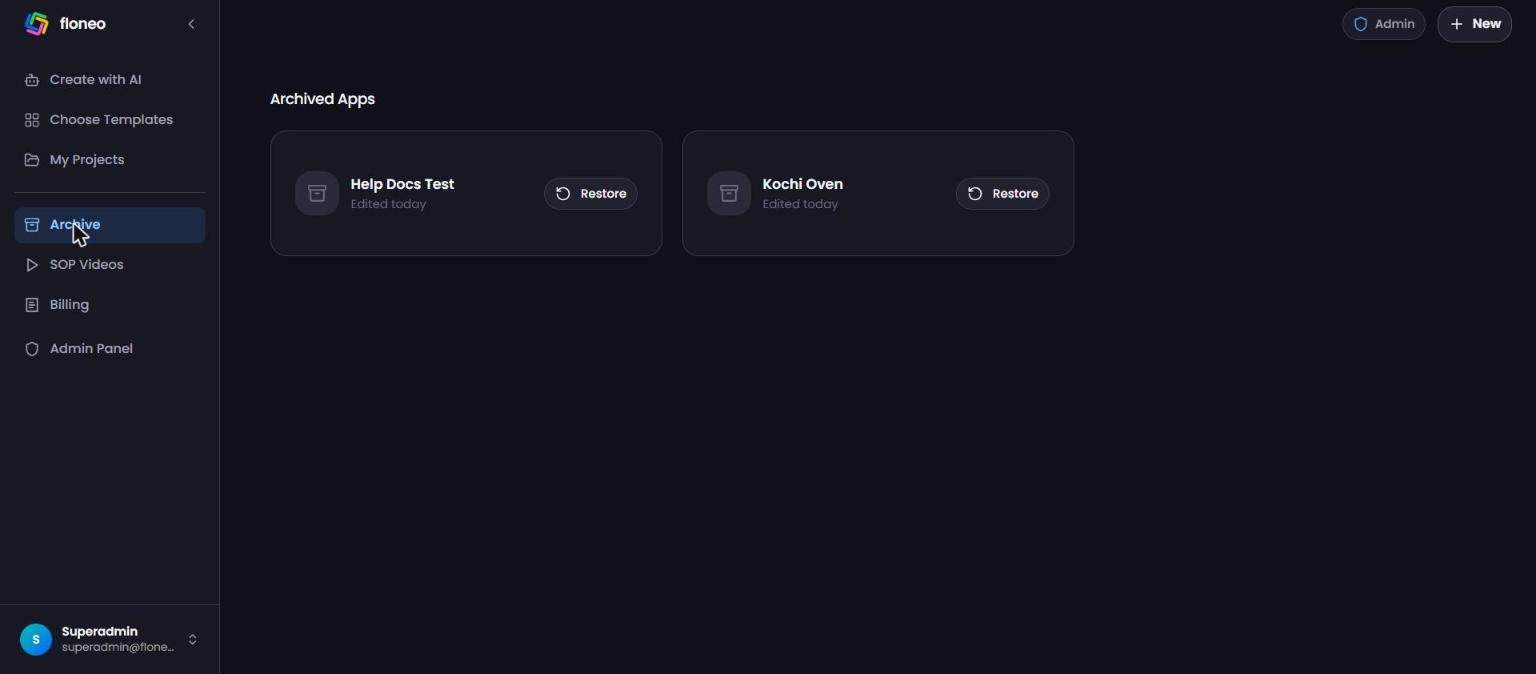
Archive and restore
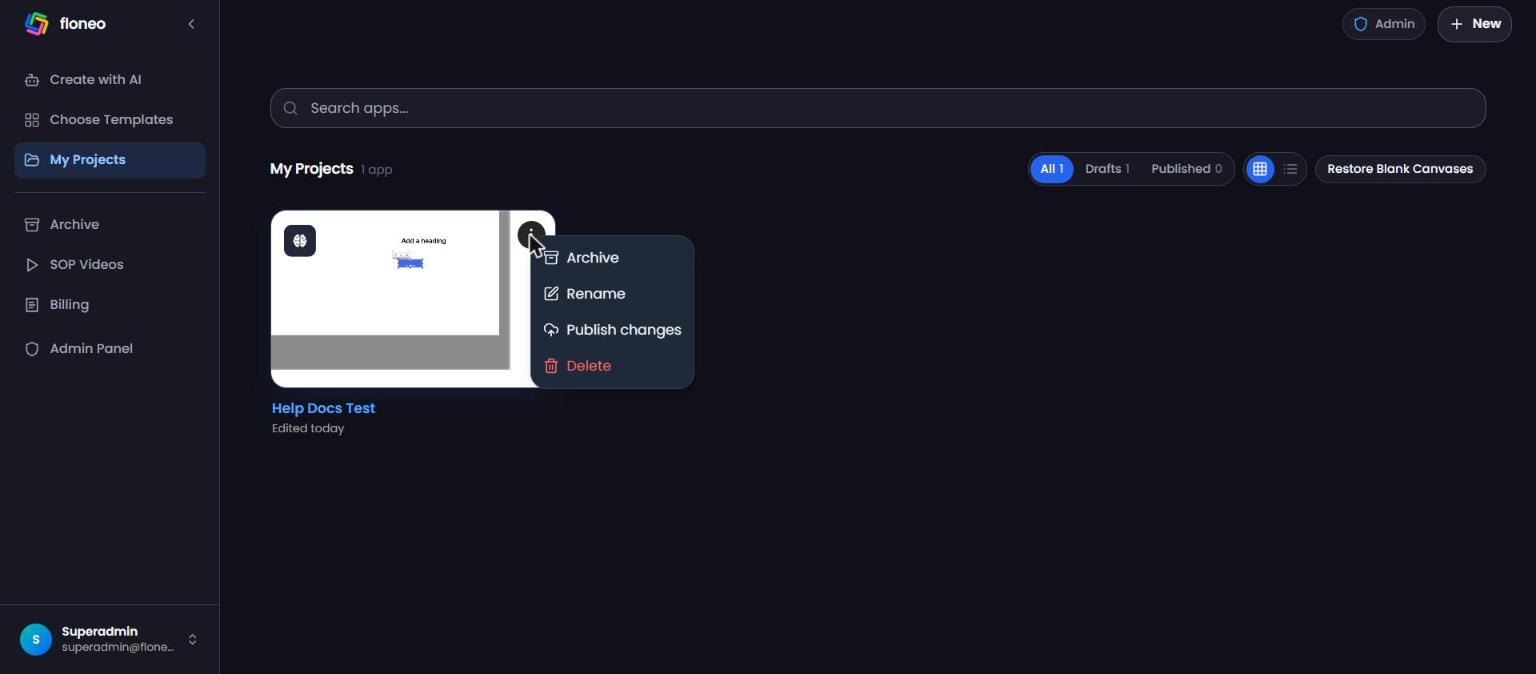
After archiving you'll see "App '…' has been archived." Open Archive in the sidebar and click Restore to bring it back to My Projects.
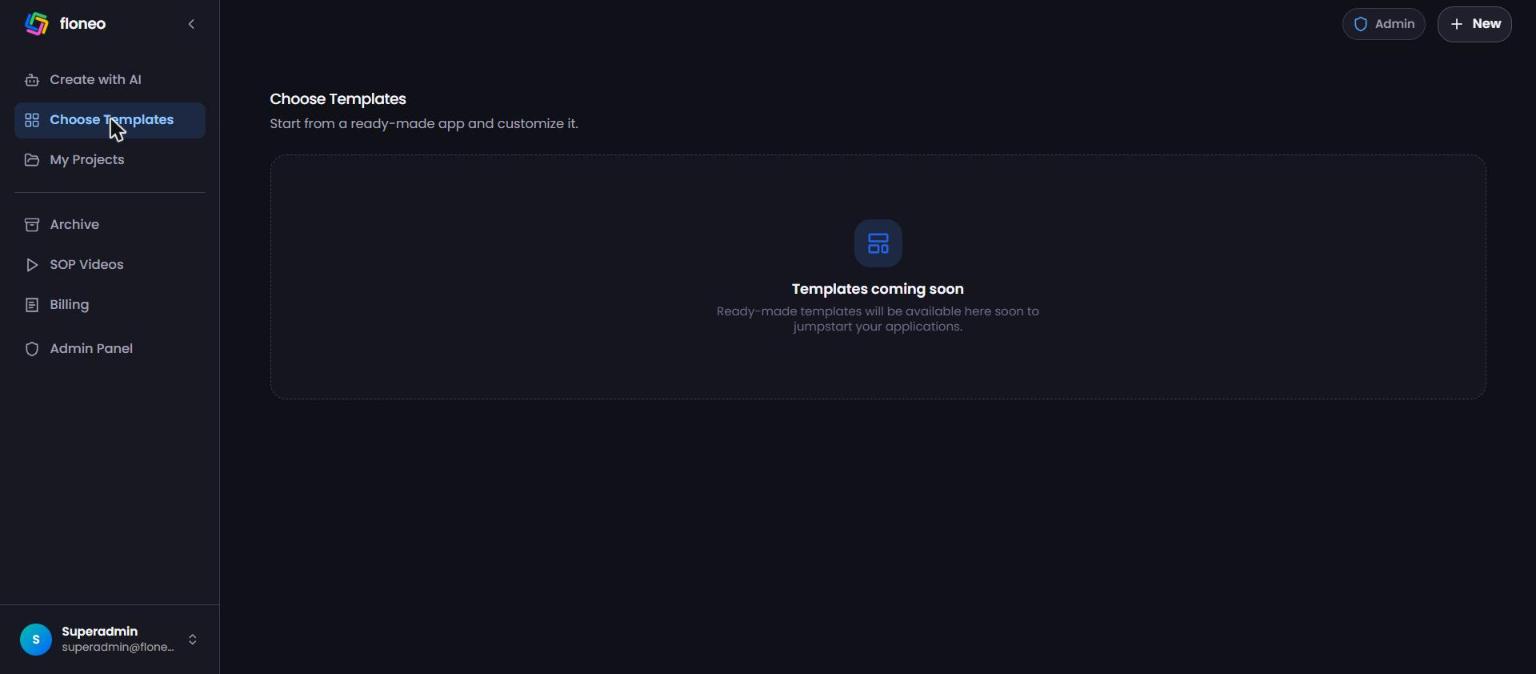
Templates
Choose Templates and Starter templates are coming soon. Until then, start with Create with AI or Sections inside the editor.
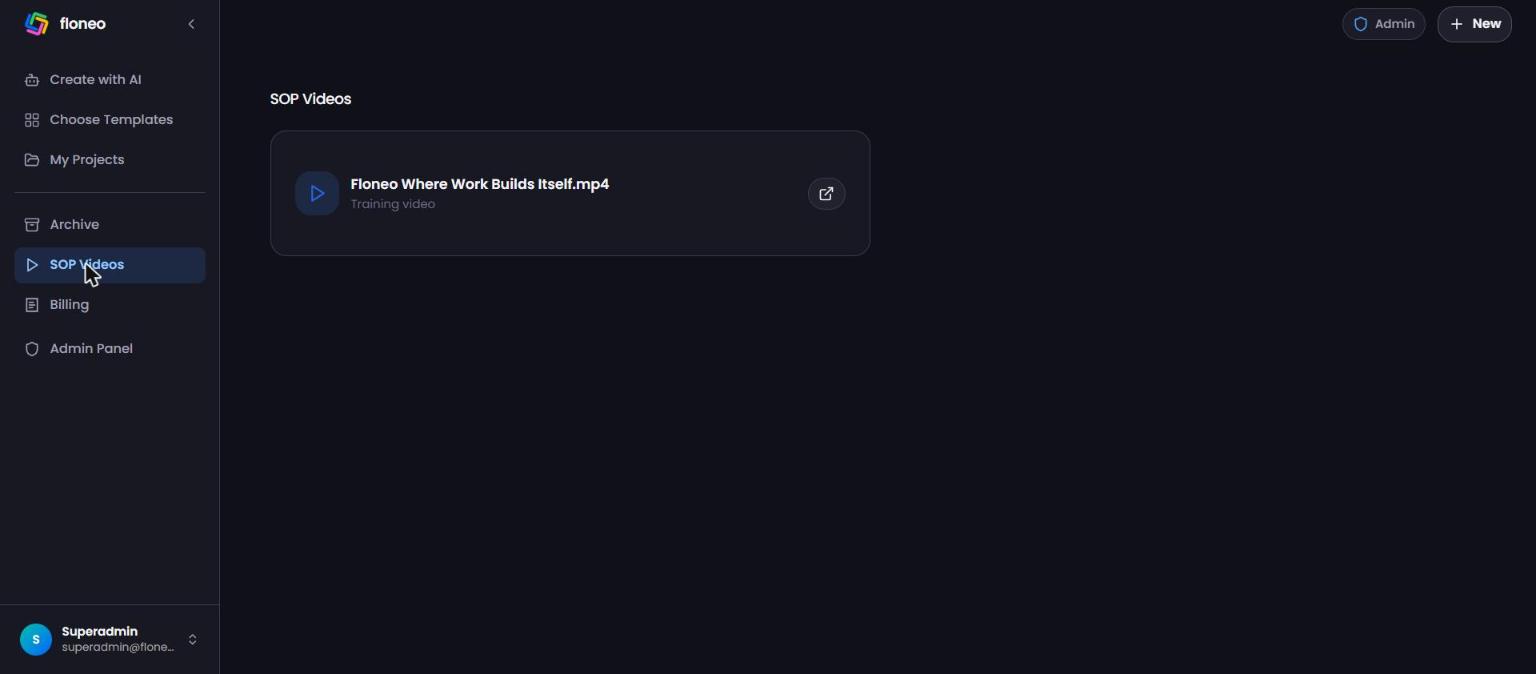
SOP Videos
SOP Videos in the sidebar has training videos from the FloNeo team. Click the ↗ icon to open one.
FAQ
Is archiving the same as deleting? No. Archived apps can be restored any time. Deleted apps can't be restored from the app. I deleted an app by mistake. Contact support as soon as possible with the app name. Does archiving take my site offline? If your app is live and must stay up, keep it in My Projects, and check with support before archiving it.
Can I restore a deleted app? Not from the app. Contact support straight away.
What is "Restore Blank Canvases"? A button on My Projects for apps whose canvas came out empty.
Didn't find your answer? Contact support